
How to Change your Email Password
To change your password
Go to your website and add /webmail at the end of your domain
Example: www.yourwebsite.co.za/webmail
Enter your full email address and current password.
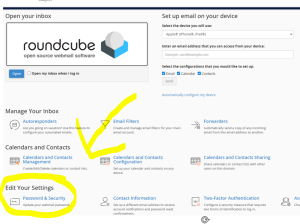
Go to Edit your settings then Password and security
Enter new password
Update pasword and settings exactly as settings below on all devices.
-
-
- EMAIL SETUP SETTINGS
- USERNAME: name@domain.co.za (always your full email address)
- PASSWORD: as supplied
- INCOMING MAIL – POP: mail.domain.co.za (always mail. then your domain name)
- OUTGOING MAIL – SMTP: mail.domain.co.za (always mail. then your domain name)
ADVANCED OPTIONS: POP3 or IMAP
- POP3 (NO Sync Option) (All mail download to your device/s and delete from server)
- ACCOUNT TYPE: POP3
- INCOMING MAIL – POP: 995 (Turn on SSL/TLS)
- OUTGOING MAIL – SMTP: 465 (Turn on SSL/TLS)
- IMAP (Sync Option) (All mail download to your device and stay on server)
- ACCOUNT TYPE: IMAP
- INCOMING MAIL – POP: 993 (Turn on SSL/TLS)
- OUTGOING MAIL – SMTP: 587 (Turn on SSL/TLS)
Outgoing Server
- Select = My outgoing server (SMTP) requires authentication.
- Select =Use same settings as my incoming mail server.
- Select = Leave a copy of messages on the server.
- Select = Remove messages from the server after 7-14 days
- EMAIL SETUP SETTINGS
-
Please Note
- Use email at own risk, we do not accept any responsibility for any loss or damages caused by emails or any loss of emails.
- We do not keep backups longer than 7 days,
- Download your mail and make own backups.
- In the event of a virus / SPAM /Malware attack we reserve the right to delete all mail without notice,
- If using IMAP you may lose all your emails on the server.
- IMAP will also keep all mail on the server and fill up your mailbox If limit is reached you will be upgraded to the next package.
- By default we always setup an “info@yourname.co.za” Email address.
- Eazy way to make your own BACKUPS: Setup your email to download in your Gmail account
- Step 1 – Log in to Gmail and go to Settings
- Step 2 – Add an email account
- Step 3 – Enter your email address
- Step 4 – Confirm you want to import with POP
- Step 5 – Enter the POP server settings
- Step 6 – Confirm you want to send from Gmail
- Step 7 – Enter the sender name
- Step 8 – Enter the SMTP server settings
- Step 9 – Open the Gmail Confirmation email
- Step 10 – Enter the verification code
- Step 11 – Verify your settings
- If you have any quires please visit www.websitessa.co.za or mail us at support@webbsites.co.za
Please log a Ticket for support here
